Add Accommodation for a Candidate
Adding an accommodation(s) on behalf of a candidate.
To add accommodation, follow the steps below:
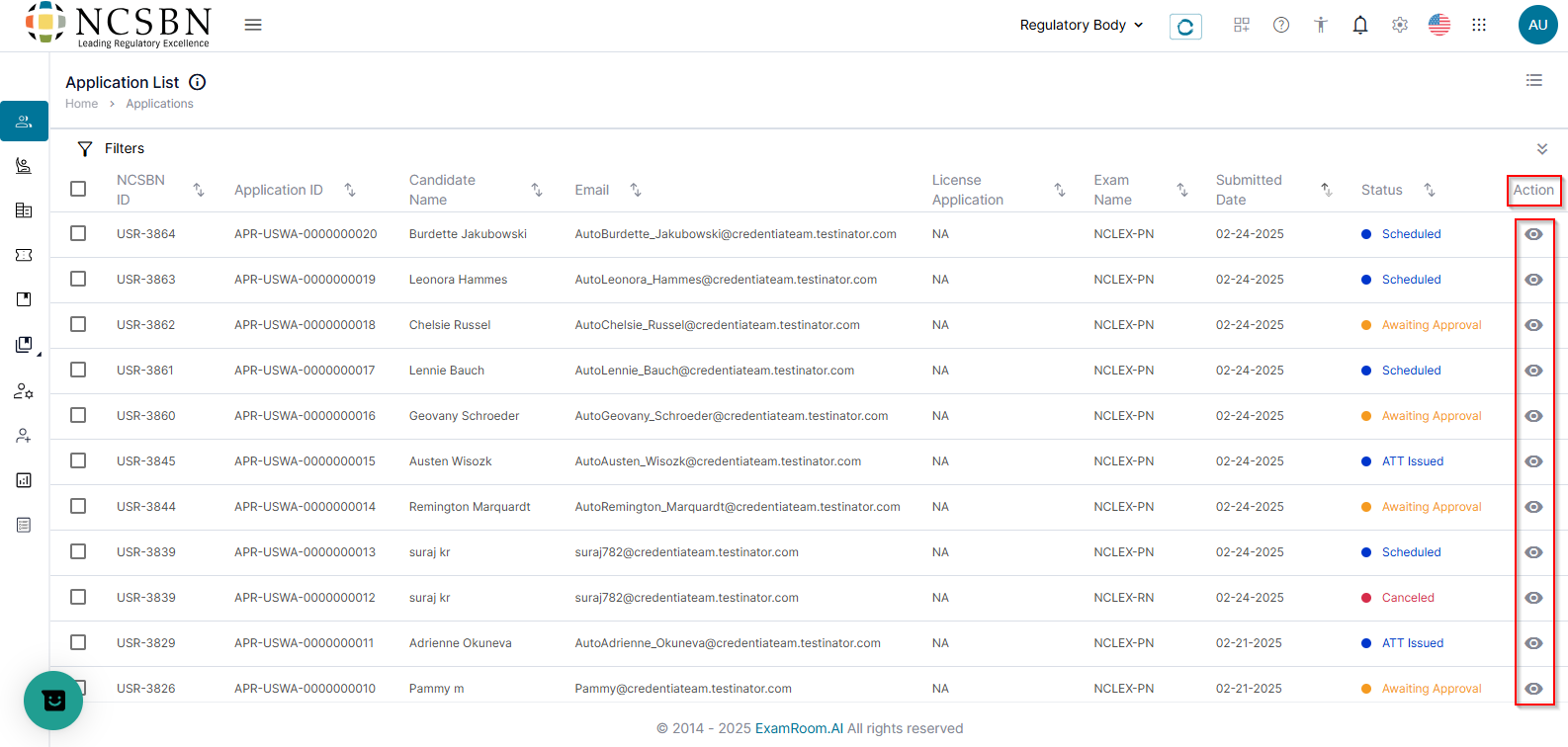
- Click Applications from the left-side navigation menu.
- In the Actions column, click the View icon to add accommodation/s for a candidate.
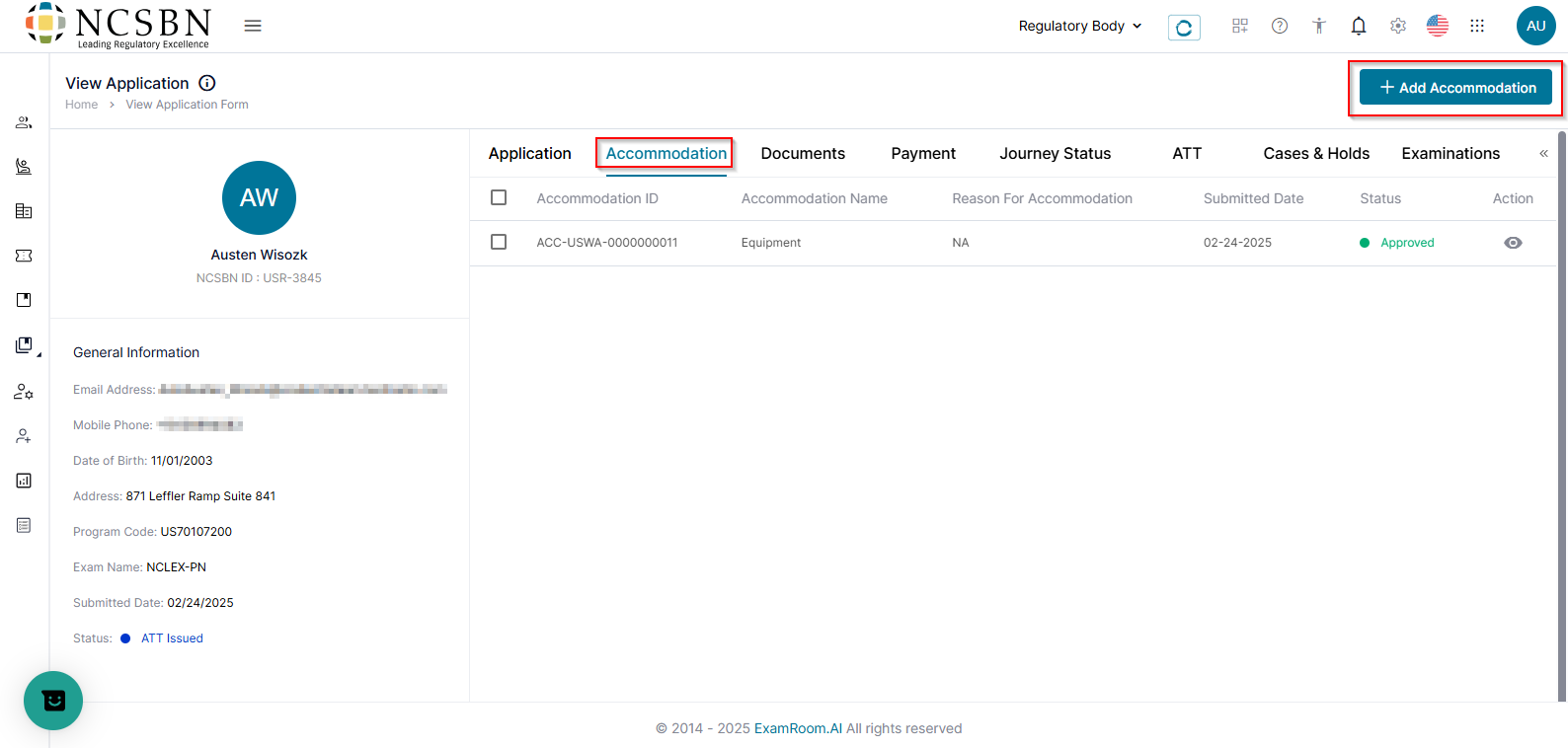
- On the View Application page, click the Accommodation tab, then click +Add Accommodation to add accommodation(s) for the candidate.
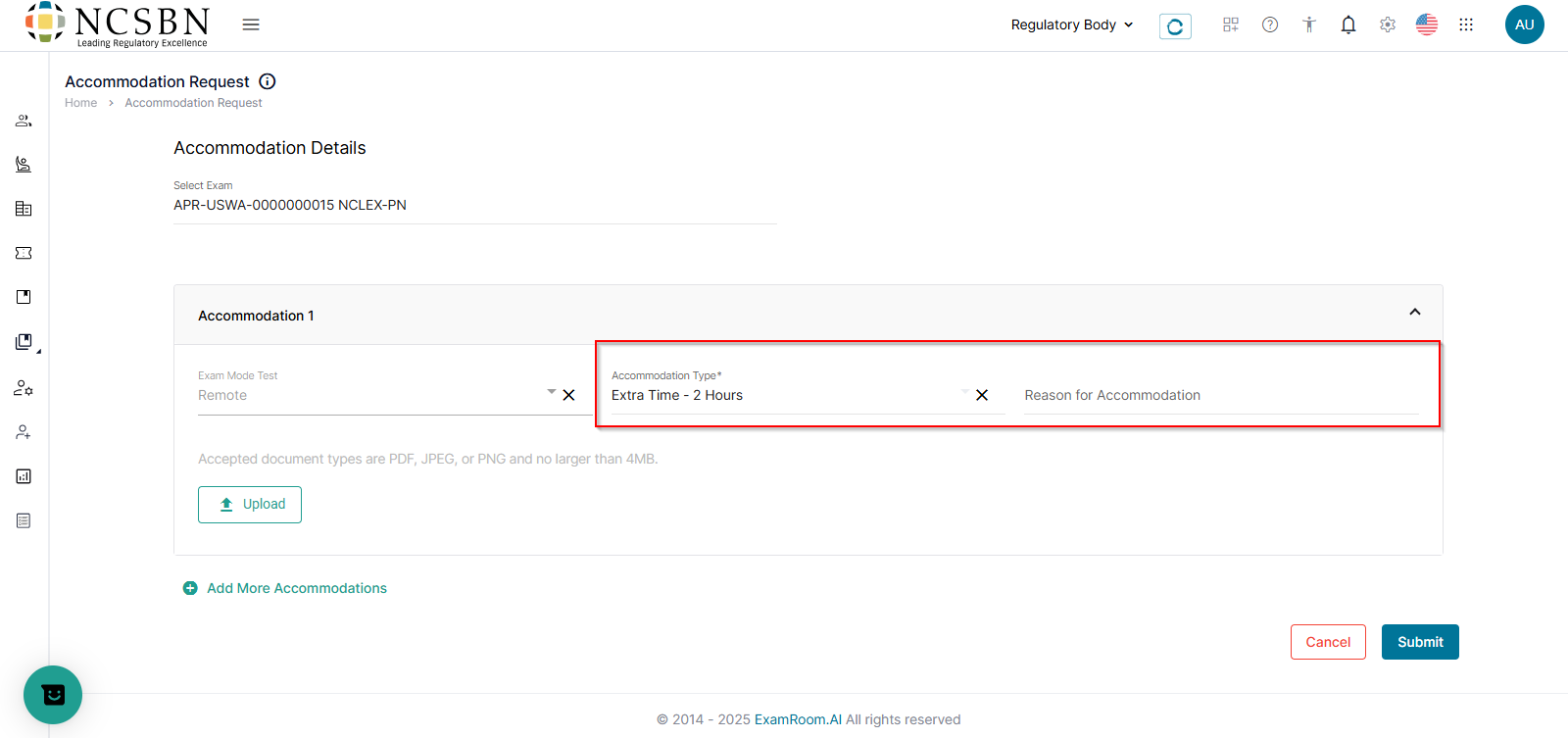
- For Accommodation 1, select the Accommodation Type and provide the reason for the accommodation in the Reason for Accommodation field.
- Click Upload to select and add the support documents provided to you by the candidate. Accepted document formats include PDF, JPEG, or PNG and must be no larger than 4 MB.
- To add more accommodations, click Add More Accommodations.
- Click Submit to save and submit the accommodation or click Cancel to discard the changes and exit.